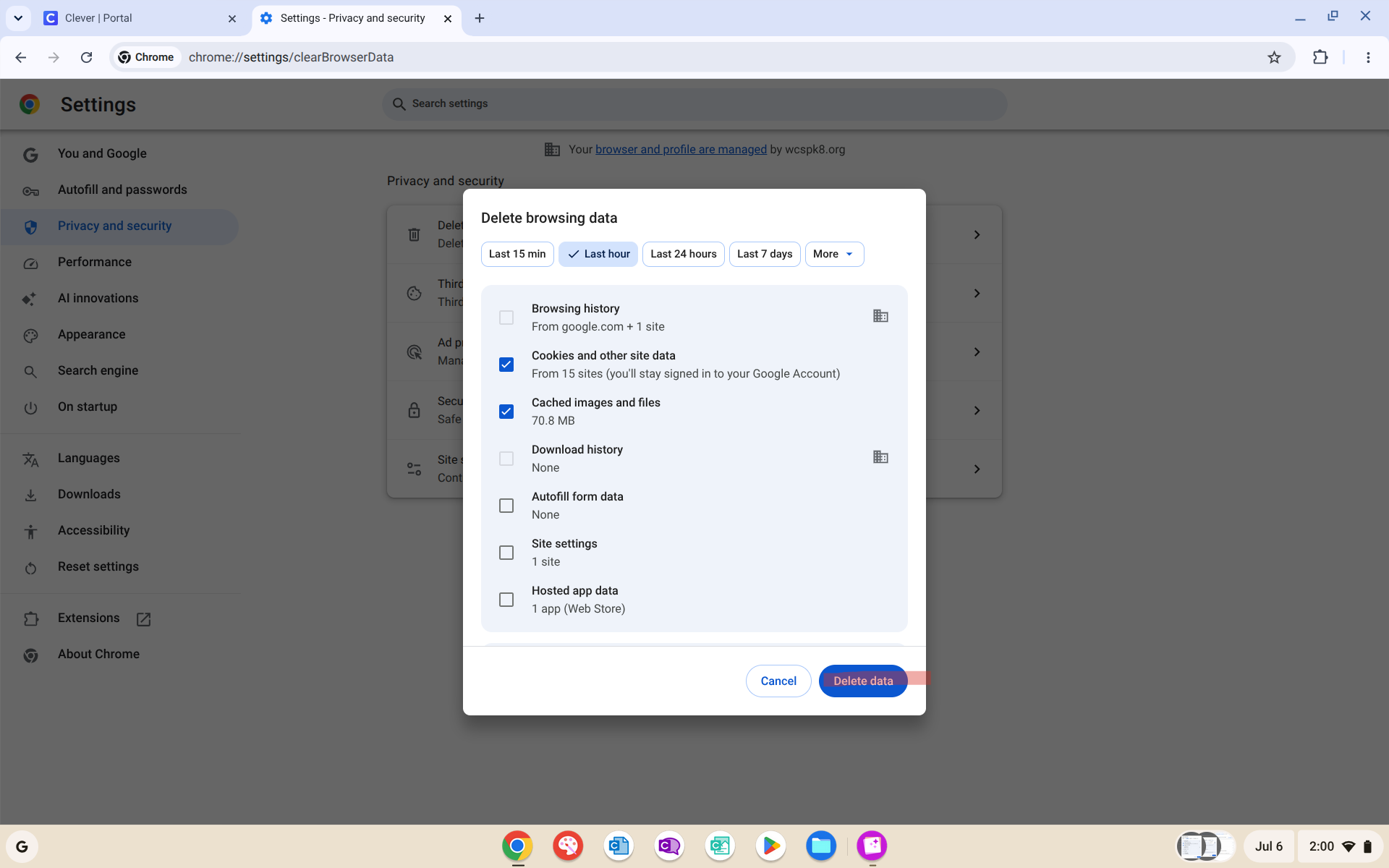
Sometimes sites can be pesky and not load correctly or have some performance issue and most times its as simple as clearing your cache and cookies. You may even be asked by your teachers to do so below you will learn how to clear your cache and cookies.
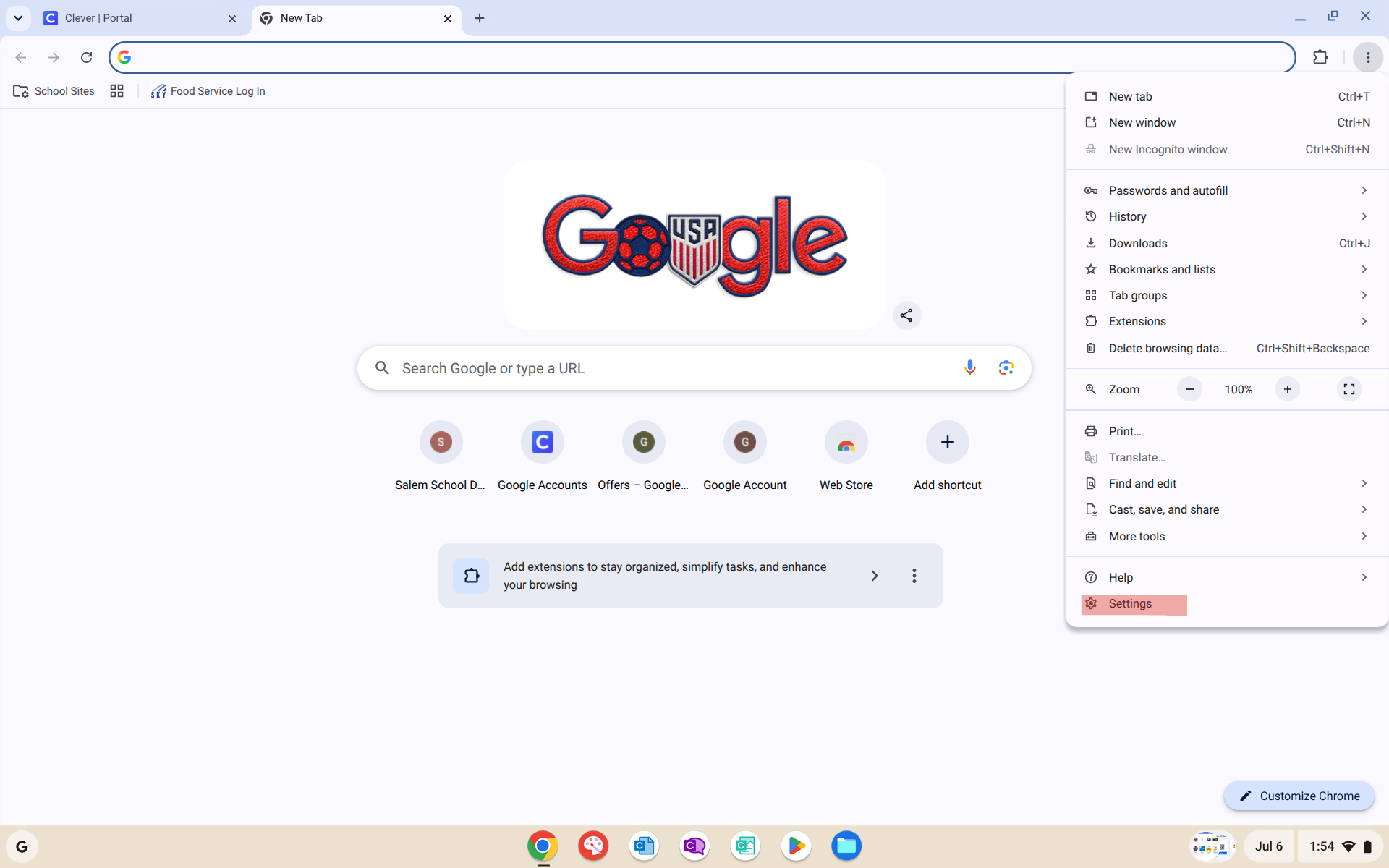
1. In a new tab on google chrome in the top right hand side you will see three vertical dots (some refer to this as the snowman) click those three dots and a dropdown will appear click settings at the bottom of this dropdown:
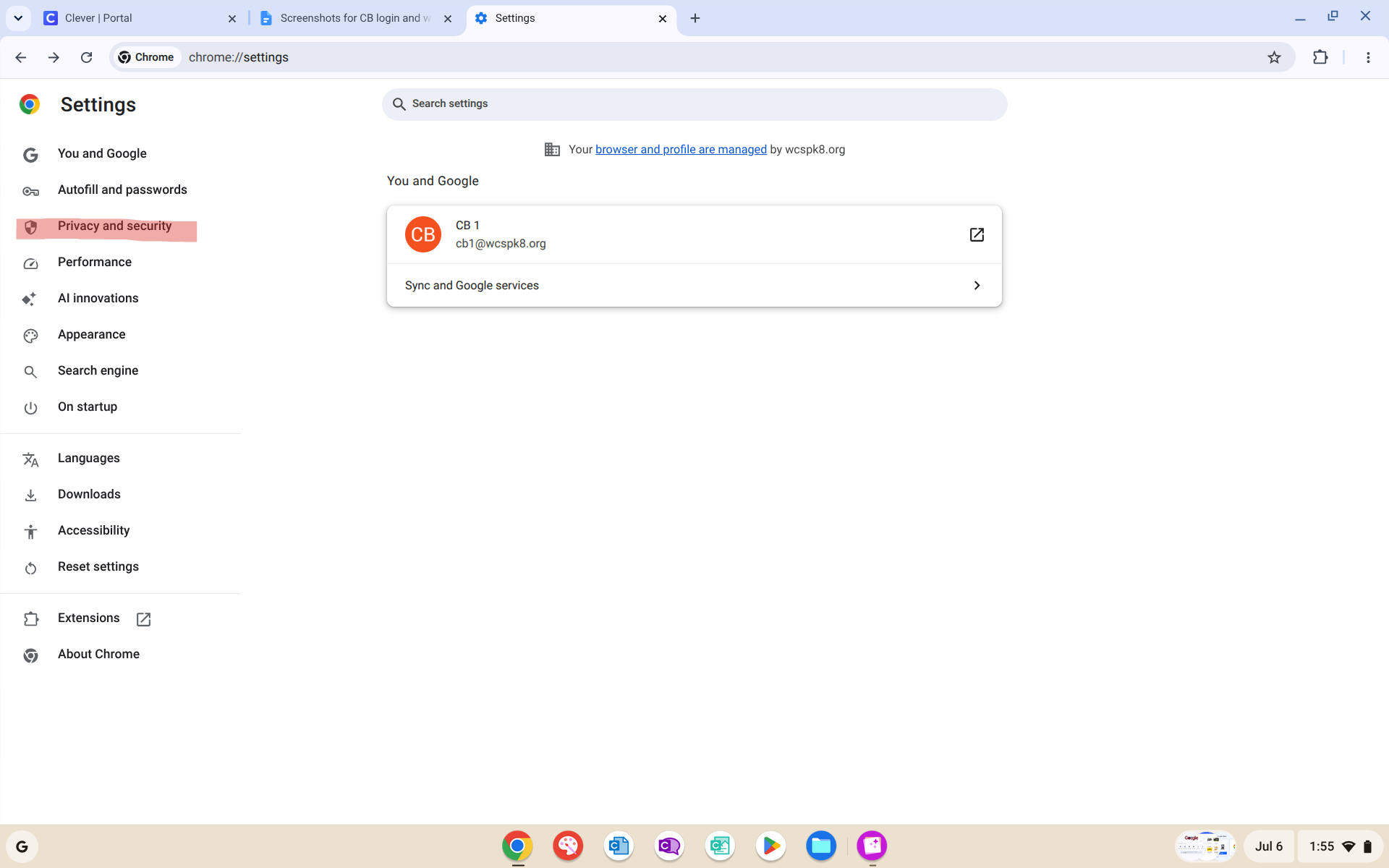
2. Once you have selected settings you will be brought to the following page and on the left hand side you will see "privacy and security"
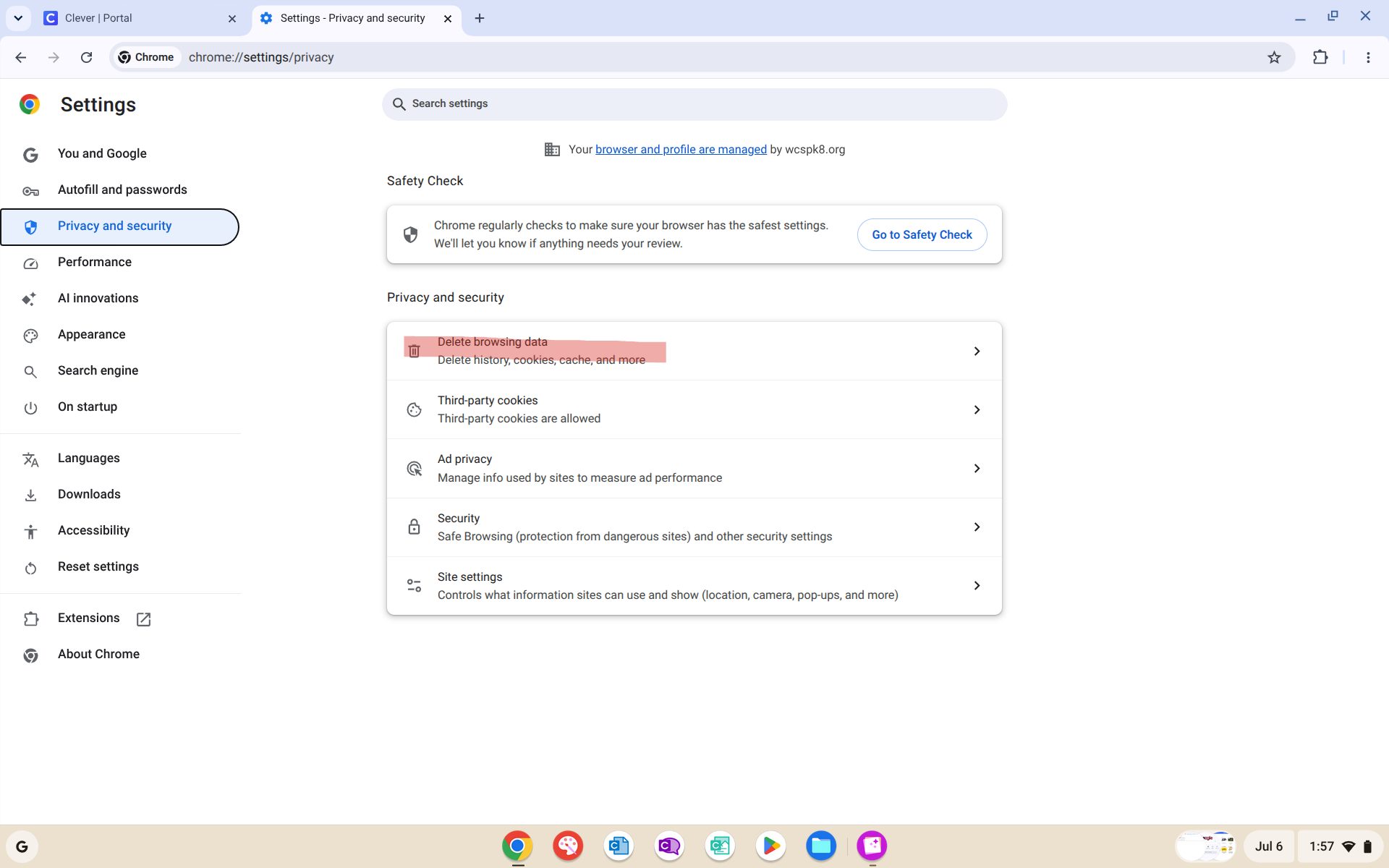
3. Now that you have identified the tab labeled privacy and security please click it, Once there you will see near the top "delete browsing data" click this:
4. Now since clicking on delete browsing data you will see a pop up box appear on your screen in the top right of that box labeled as "more" click this drop down and change to "all time":
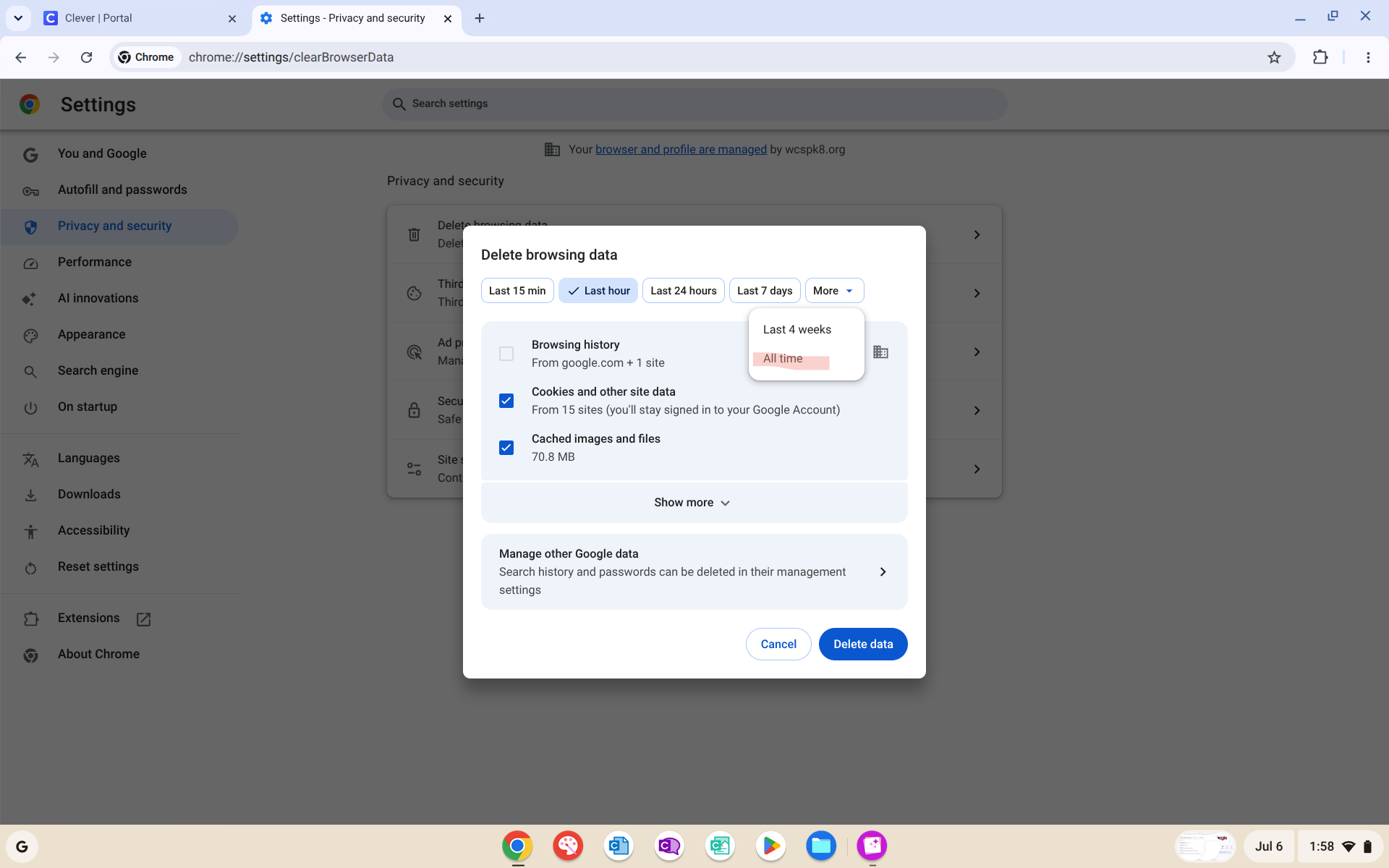
5. Please ensure the boxes titled "cookies and other site data" along with "cached images and files" is toggles on. (Pro tip click show more and make sure you don't lose your autofill form data by having it checked):
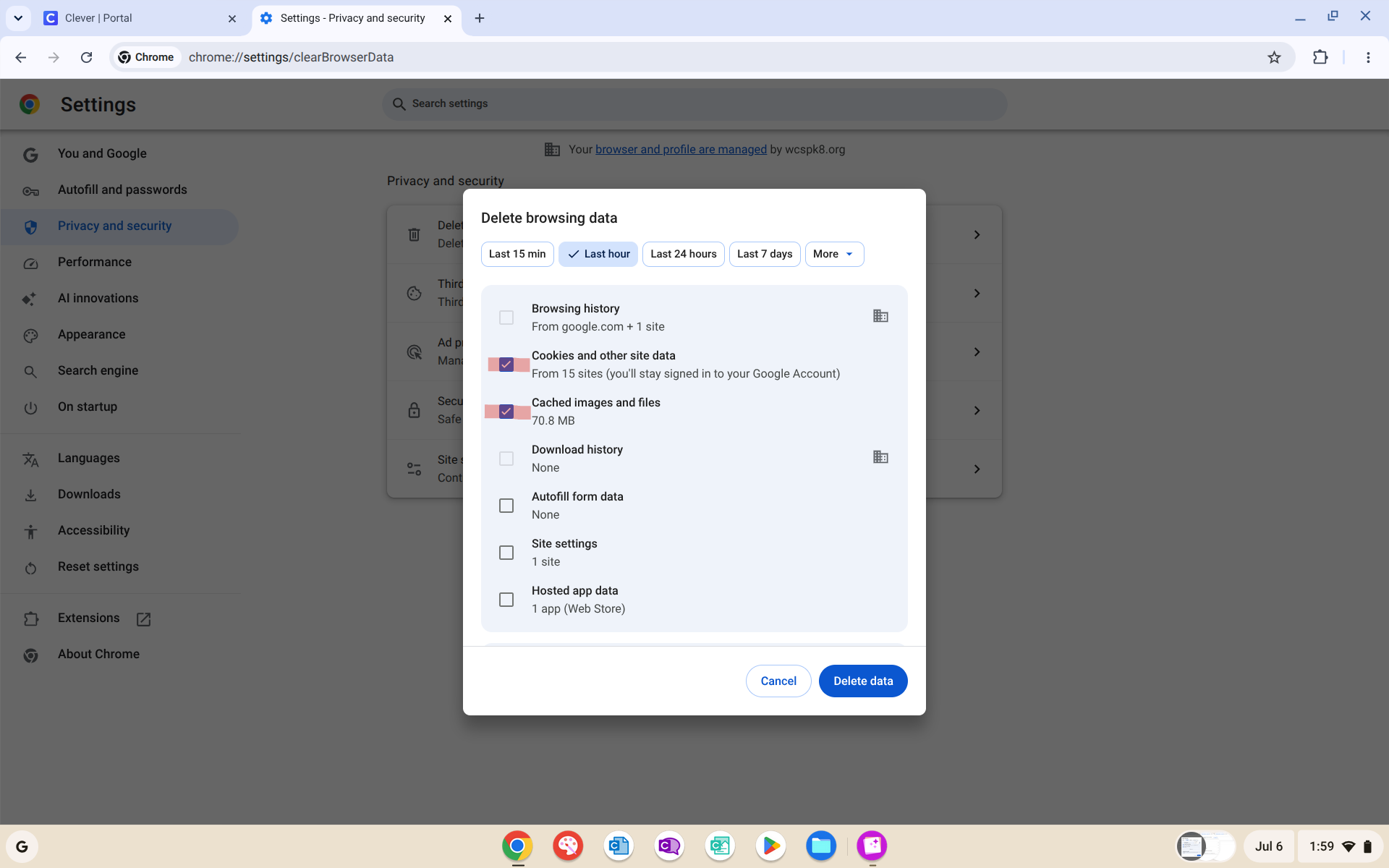
6. Now that you have confirmed you have clicked the correct boxes and changed the timeframe to "all time" click delete data and your cache and cookies have been cleared: